GPX → poster (PDF)
From GPX to poster — the file, not one print.
Upload your GPX and download a print-ready PDF you print and frame yourself. No waiting for shipping, no one-off print.
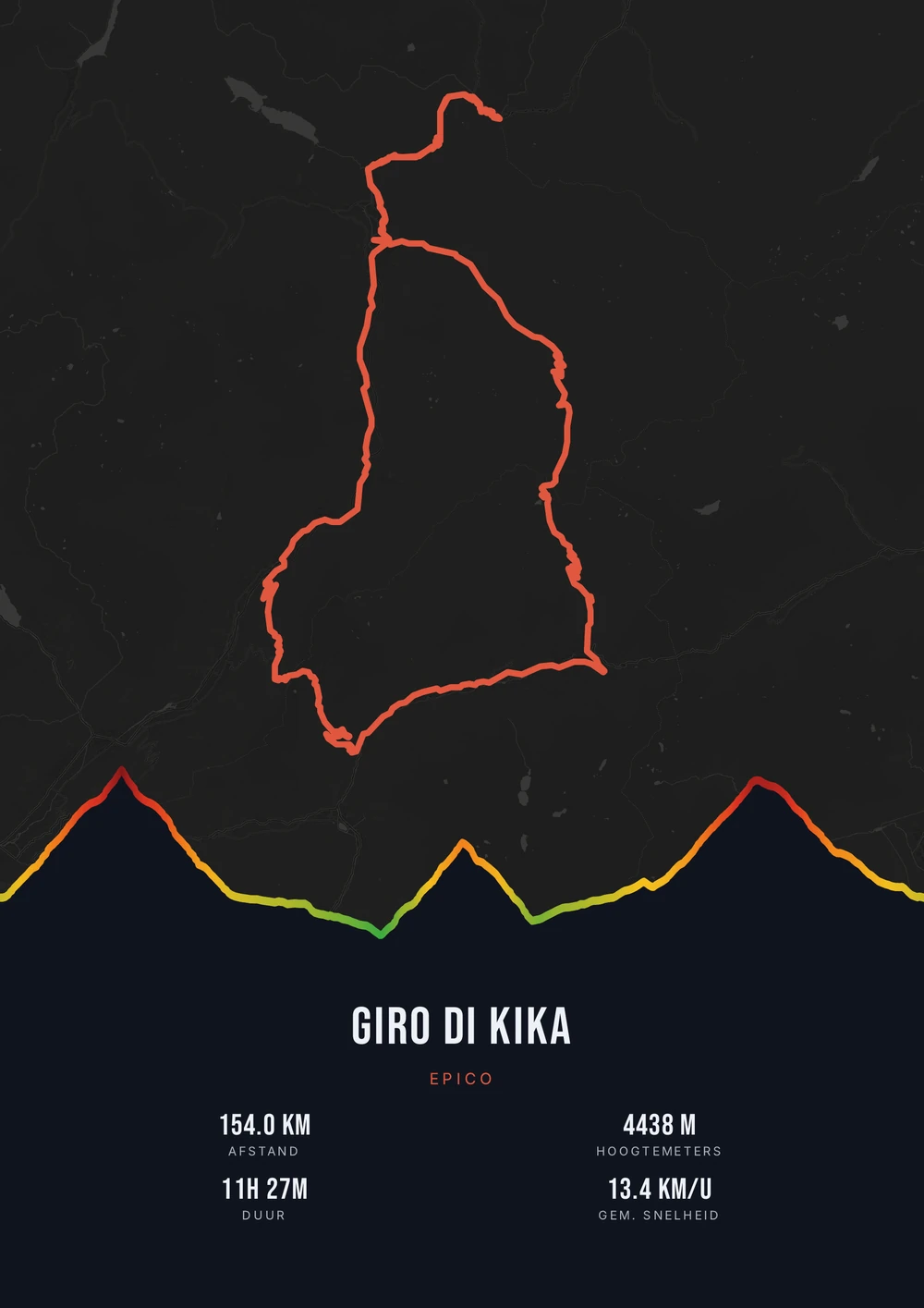
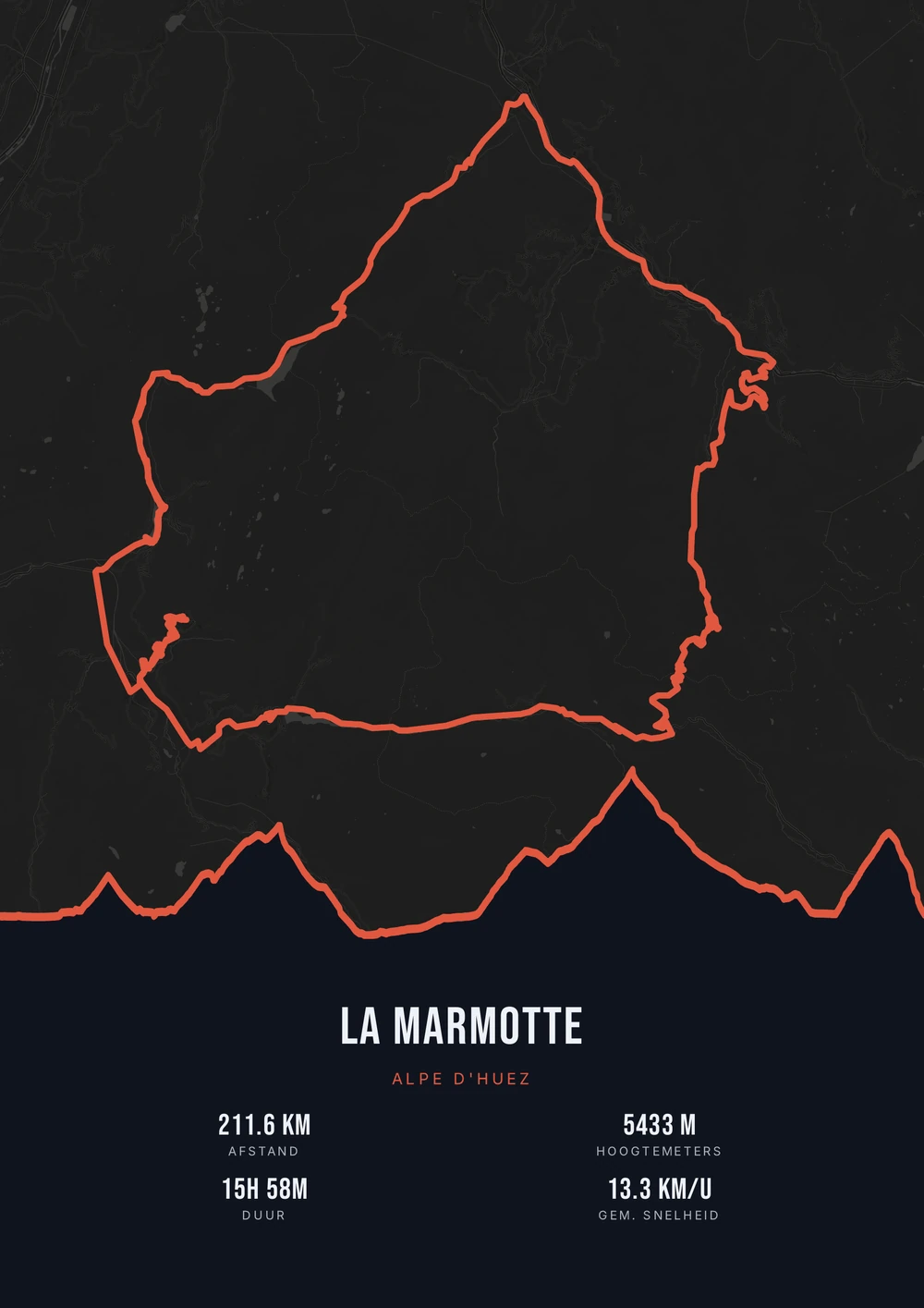
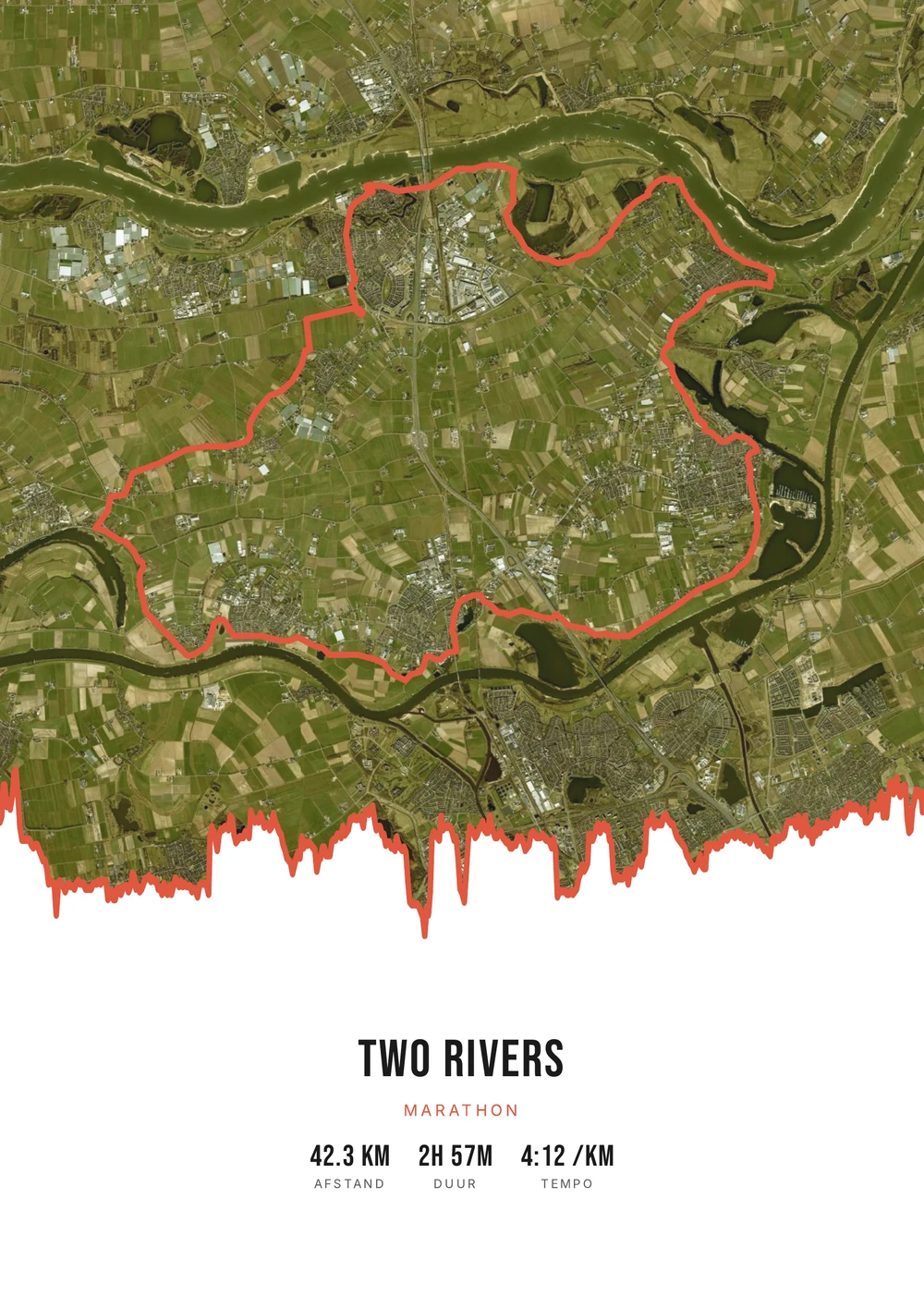
One ride. Endless looks.
Different rides, each in its own palette, map style and elevation gradient.
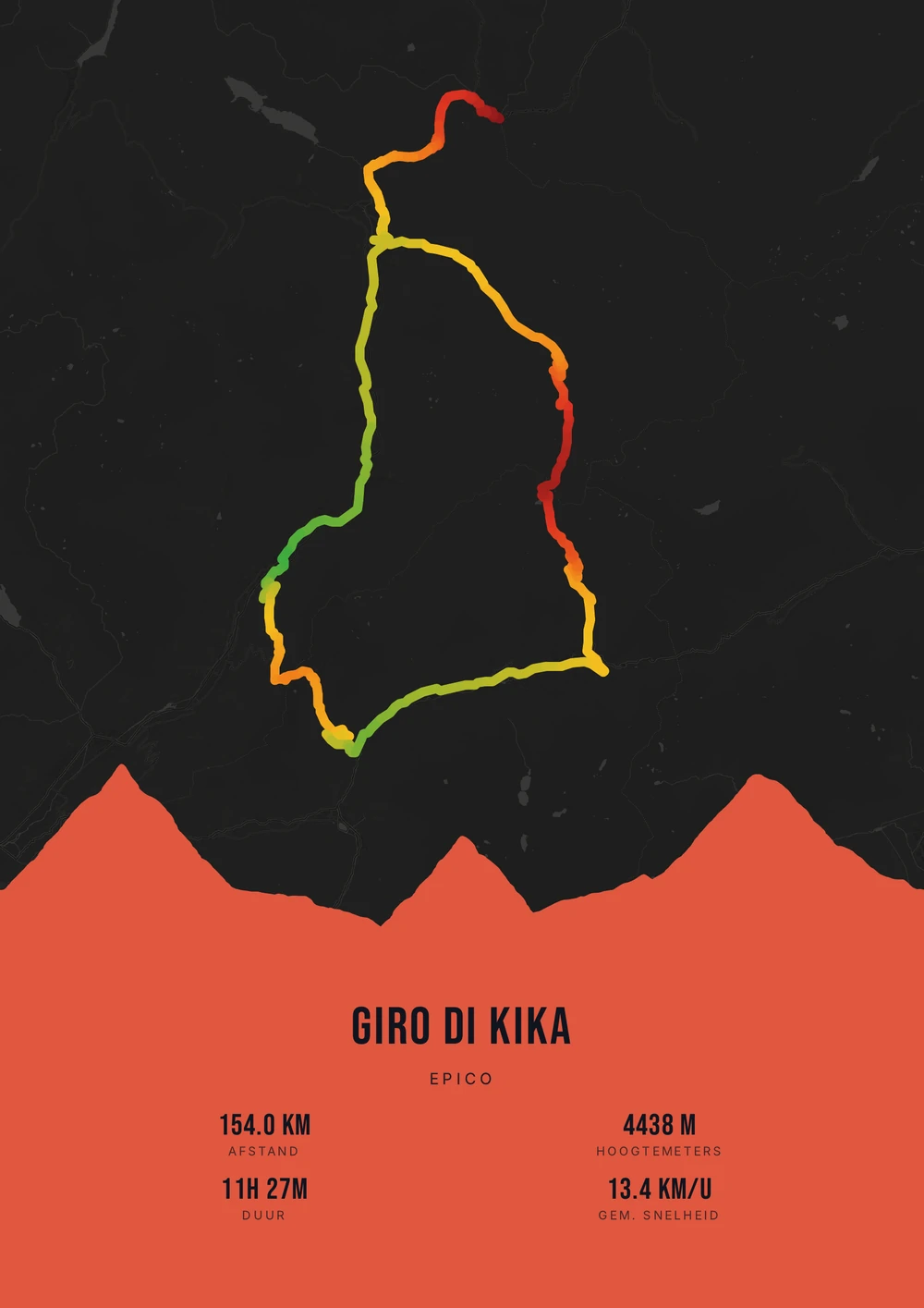
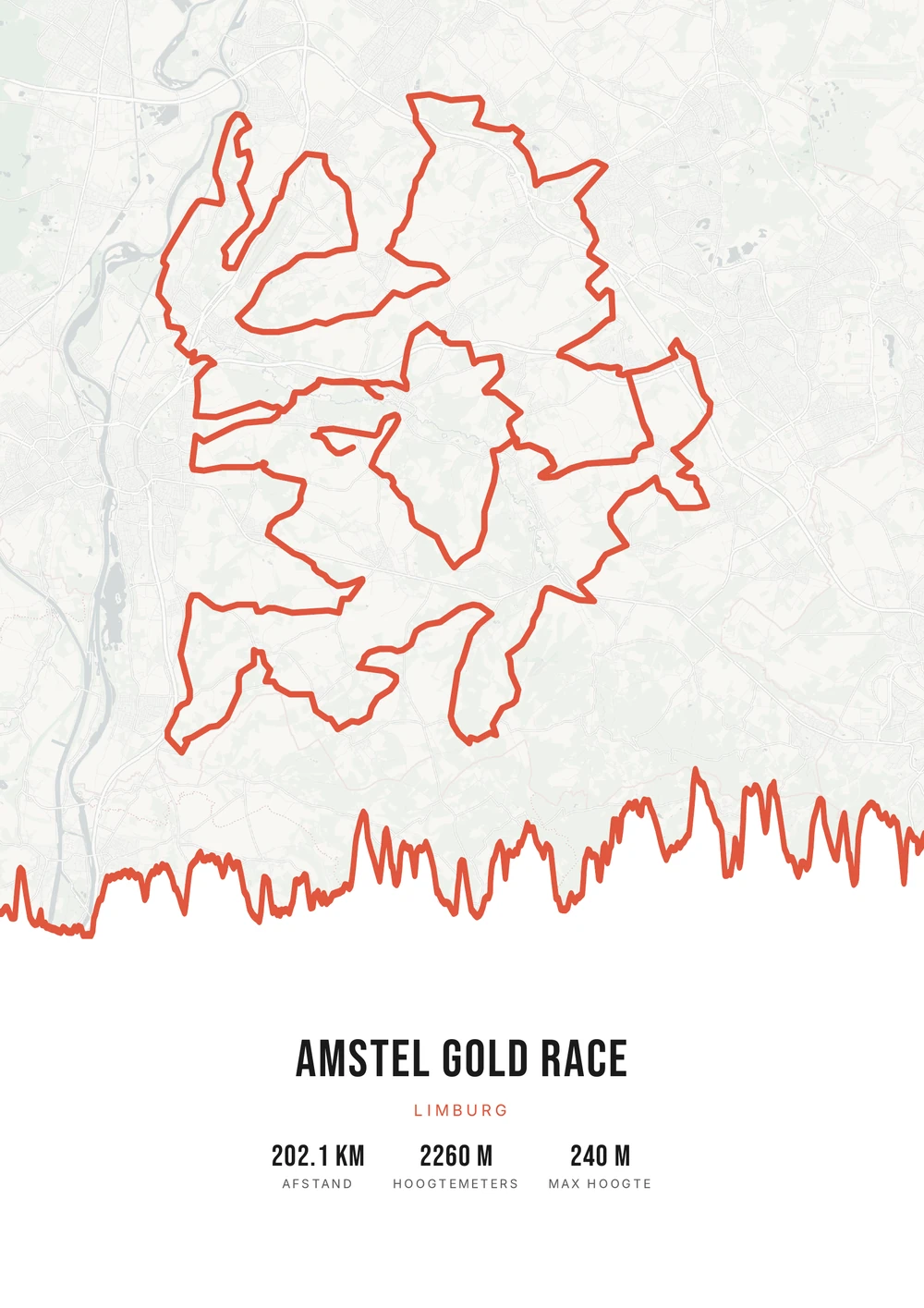
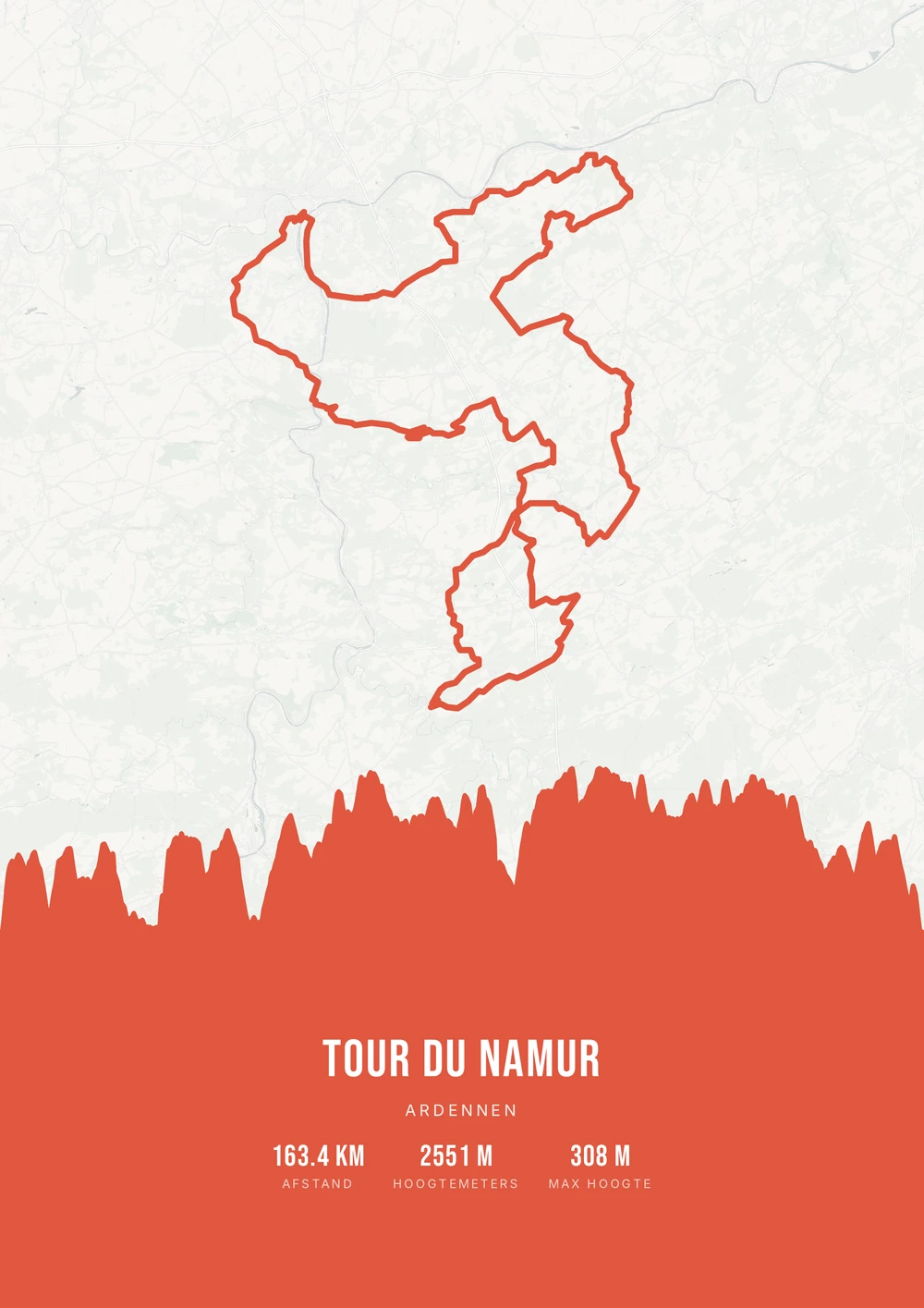
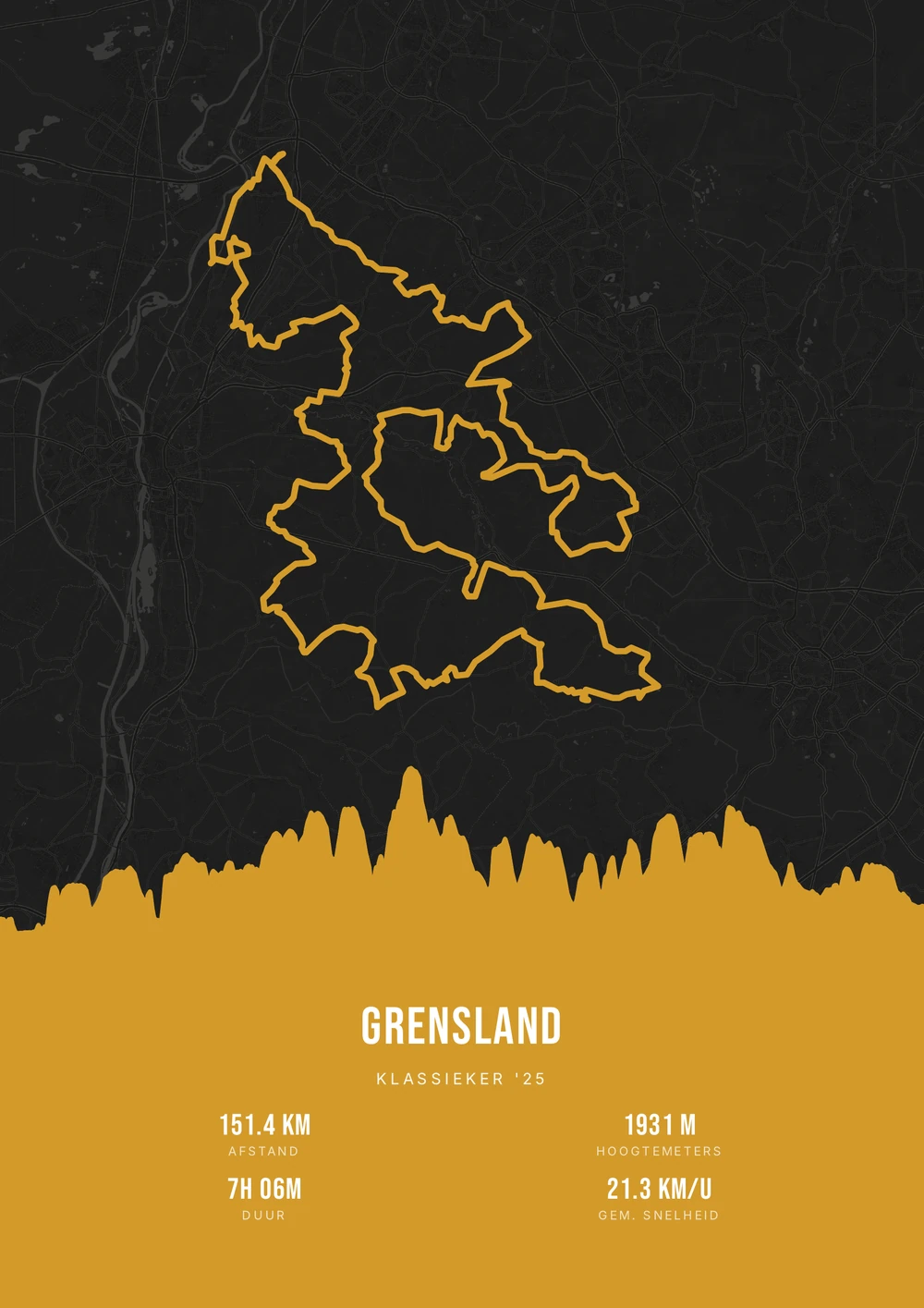
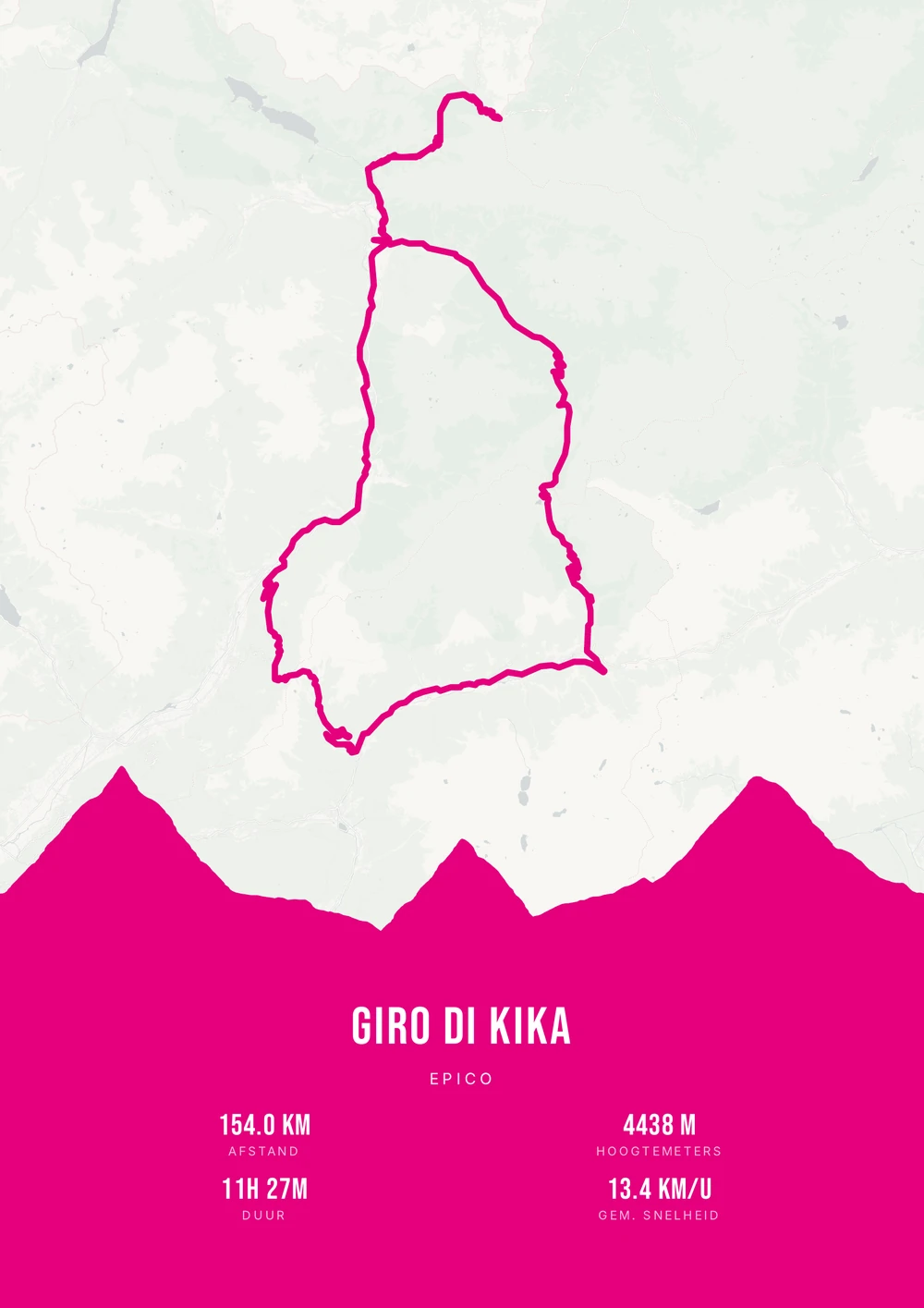
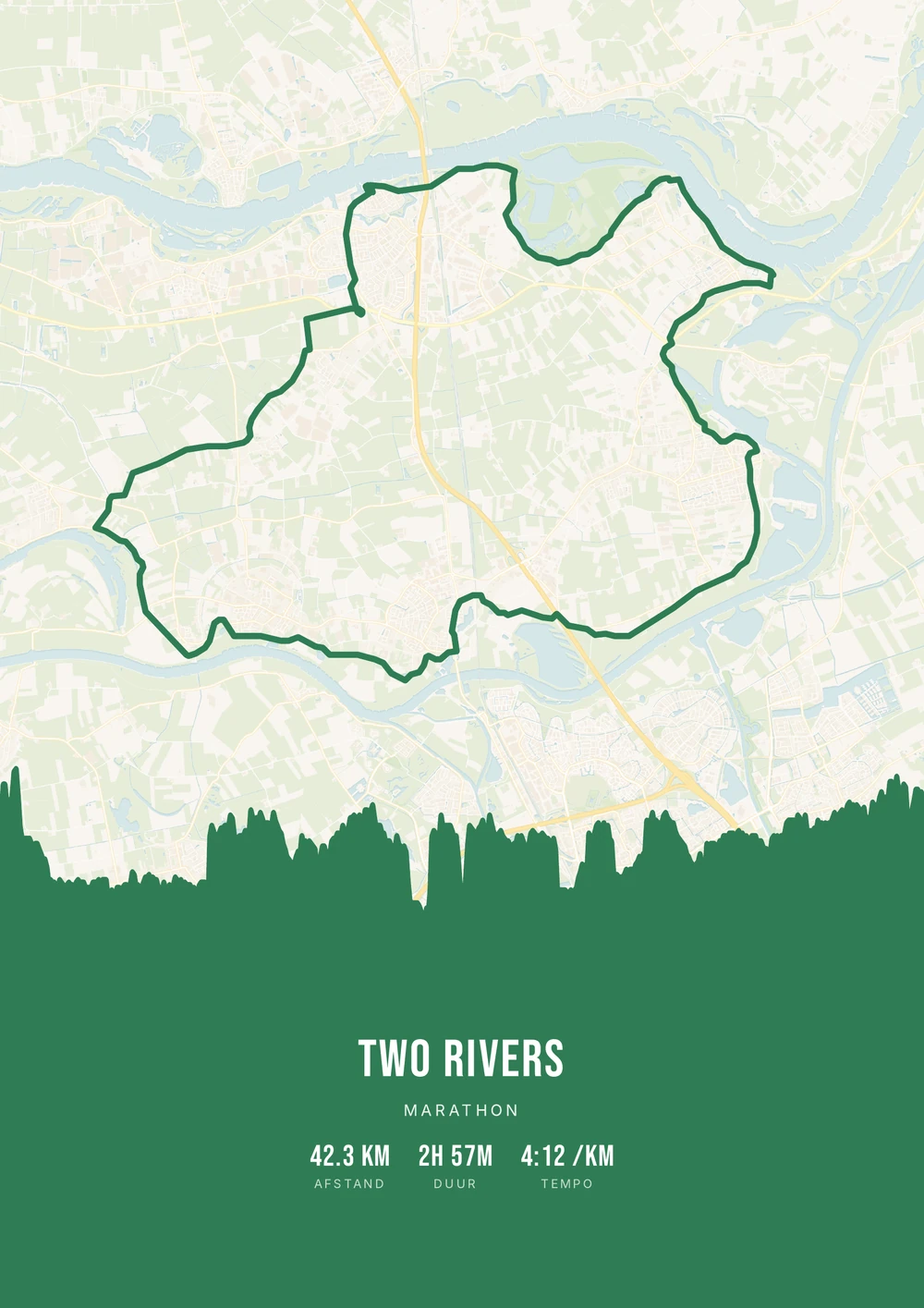
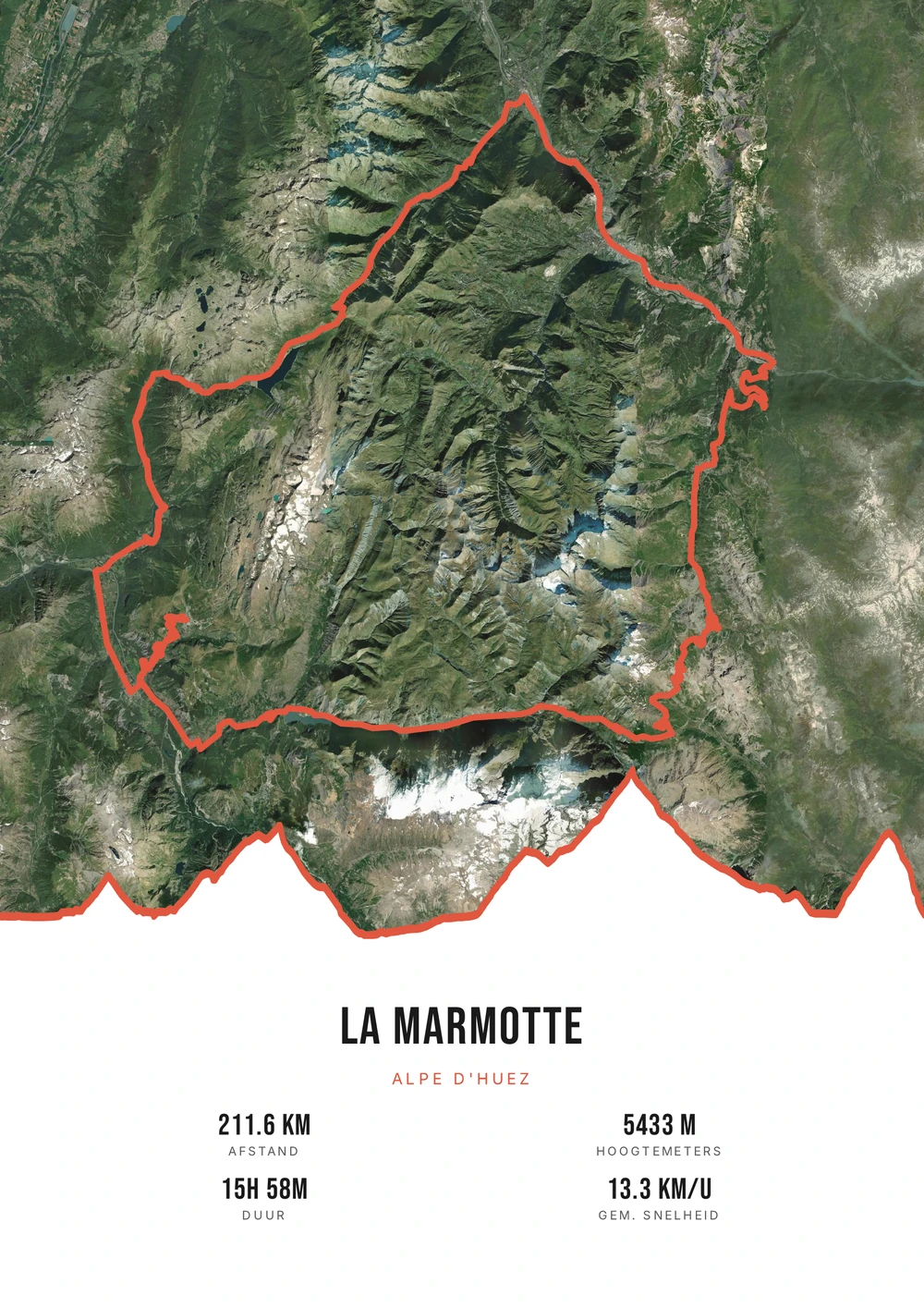
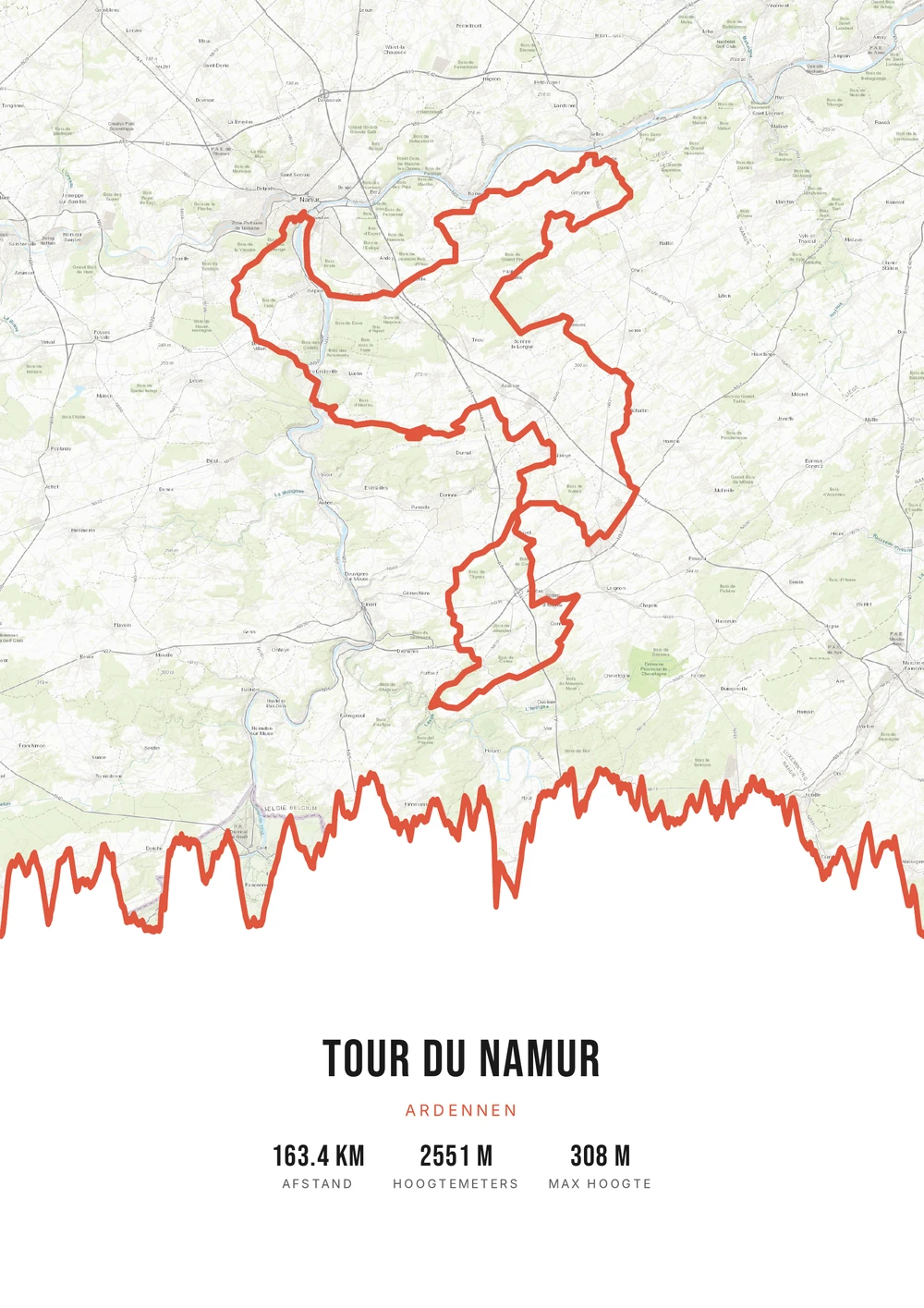
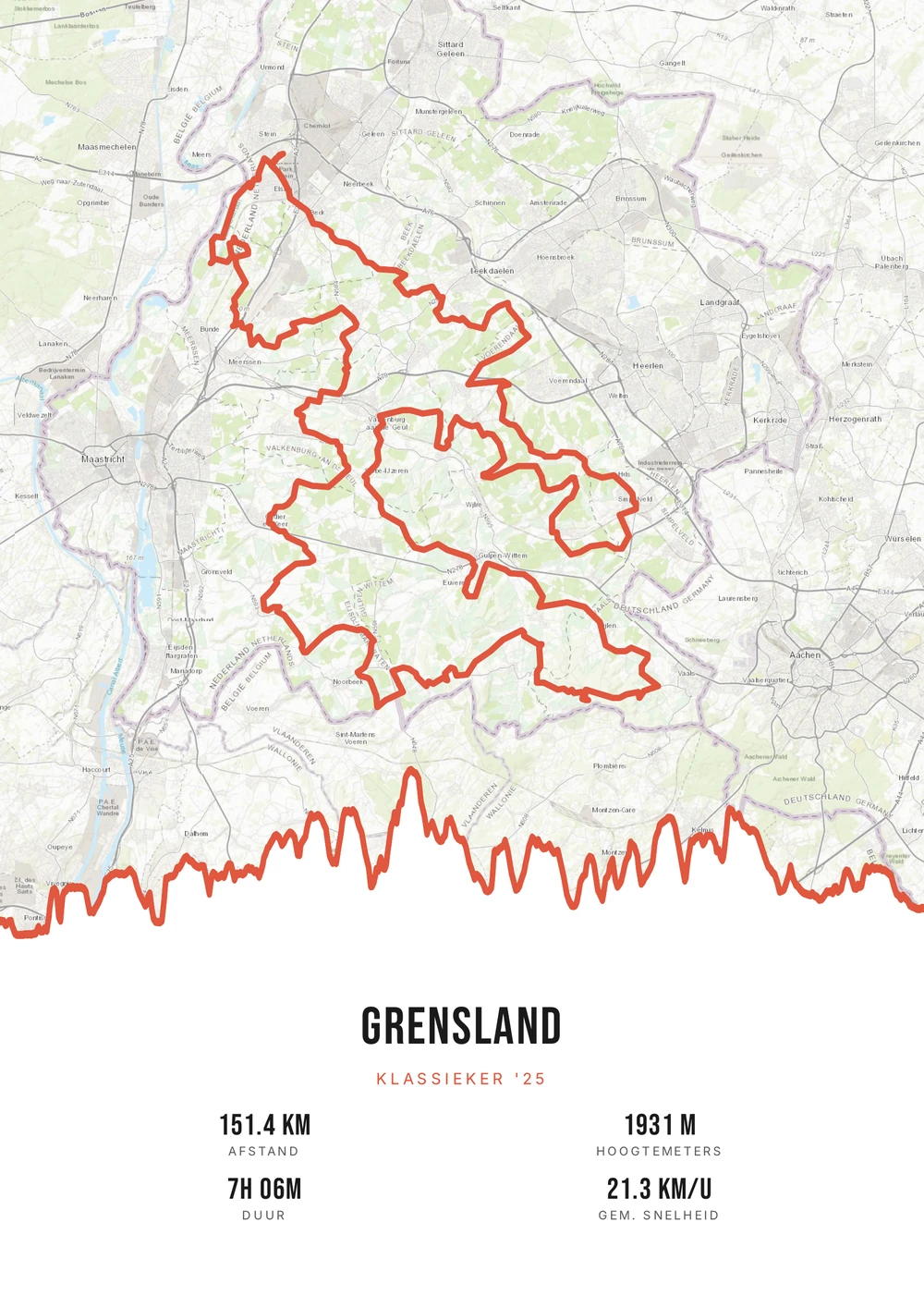
GPX in, PDF out
Why you'd rather have the file than a print
At most route poster shops you order a printed copy: one size, once, with shipping costs and a delivery time. Want it bigger later, or does a glass end up on it? Then you start again. You bought the poster, but not the design.
At Route Frame it is about the file. You upload a GPX and get a print-ready PDF in vector quality back: the route line and the text stay sharp whether you print it on A4 or have it produced a metre wide. There is no watermark and no limit on the number of prints.
In practice that means: print small today for the study, have it produced large at a print shop later, and print it again in five years as a gift for someone who did the same trail. The file arrives by email, so you can always find it again.
Why a file instead of a printed poster?
Most shops ship you one printed poster. Here you get the PDF source file itself — more flexible and cheaper.
-
Print it yourself, any size
A4 at home or large at the print shop. You choose paper, size and frame.
-
Endlessly reprintable
Lost the file or damaged the poster? Just print it again — forever.
-
Sharp at any size
Vector PDF: even printed large everything stays razor-sharp, no watermark.
Coming soon: broader packages and extra sizes.
GPX → poster
From GPX to poster: how it works
Got a GPX file? You'll be done in a minute.
Where does your GPX come from?
Any GPS trace with coordinates works — the source doesn't matter.
-
A sports watch
Garmin, Polar, Suunto or Coros: export the activity as GPX.
-
A sports app
Strava, Komoot or Wikiloc can save any activity as a GPX.
-
A route planner
A planned route works just as well as a ridden or run track.
-
An organiser
Many events publish the official course as a GPX file.
GPX → poster (PDF)
Frequently asked questions
-
Can I convert a GPX file into a poster?
Yes. Upload your GPX to Route Frame, pick a style and download the print-ready PDF.
-
Do I get a file or a printed poster?
You get the PDF source file itself. You print and frame it yourself — as often as you like, in any size.
-
Which GPX files work?
Any standard GPX works, whether it comes from Strava, Garmin, Komoot or your GPS.
-
Which apps can I export a GPX from?
Strava, Garmin Connect, Komoot, Wikiloc, Ride with GPS and Polar Flow, among others. Almost every sports app or route planner has a GPX export option.
-
Can I merge several GPX files?
Yes. Multiple files can be combined into one continuous route, with the distance and elevation gain added up.
-
What if my file has no elevation data?
Then you can switch the elevation profile off and let the poster lean on the route line and the statistics. Everything else works as normal.
Got a GPX? Make your poster.
Upload your file and watch your poster appear in seconds.
Opens the editor with a real 151 km ride through South Limburg. Everything is editable, and you can still upload your own GPX afterwards.